
- Published on
Syncing Your CGM to a Smartwatch: A Beginner's Guide
Have you ever been in the middle of a grocery store checkout, a high-stakes work meeting, or a long-distance run and felt that familiar, nagging question: "What is my blood sugar doing right now?" For years, answering that question meant stopping everything to pull out a handheld receiver or fumbling with a smartphone. But the landscape of diabetes management is changing rapidly. Imagine being able to see your glucose levels with a simple flick of your wrist, as easily as checking the time.
Syncing your Continuous Glucose Monitor (CGM) to a smartwatch is more than just a cool tech trick; it is a fundamental shift in how you interact with your metabolic health. It moves glucose monitoring from a disruptive "event" to a seamless part of your daily flow. By bringing real-time data to your wrist, you gain the power to make faster, more informed decisions without the friction of traditional monitoring methods. Whether you are living with Type 1, Type 2, or simply optimizing your metabolic health, this guide will walk you through the why and how of connecting your CGM to your favorite wearable.
The Power of Glanceable Data: Why Sync Your Watch?
The primary benefit of syncing your CGM to a smartwatch is what many in the health tech world call "glanceability." When your glucose data is on your wrist, you reduce the mental burden of diabetes management. Instead of waiting for an alarm to sound—which can often trigger stress—you can proactively monitor your trends throughout the day. This leads to better "Time in Range," a metric that tracks the percentage of time your blood sugar stays within your target window.
Furthermore, viewing your glucose levels on a watch offers a level of discretion that smartphones cannot match. It allows you to stay informed in social situations or professional environments where pulling out a phone might be seen as impolite or distracting. For athletes, it is a game-changer. Checking your levels during a bike ride or a swim ensures you can fuel properly before a low occurs, keeping your performance steady and your body safe. However, remember that while this technology is powerful, you should always consult your doctor before making significant changes to your insulin dosing or treatment plan based on wearable data.
What You Need to Get Started
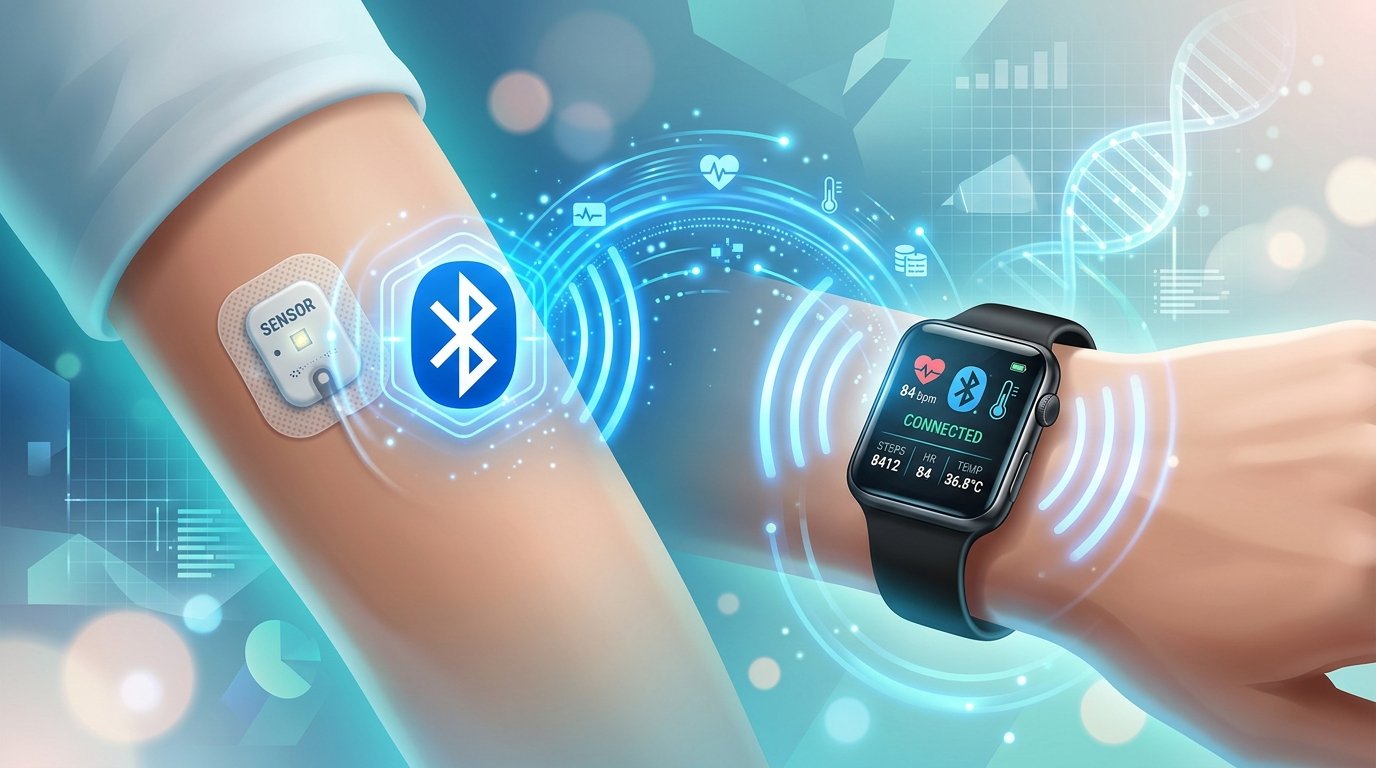
Before you dive into the settings menu, let’s ensure you have the necessary components for a successful sync. The ecosystem of glucose monitoring involves three main parts: the sensor, the bridge, and the display.
- The CGM Sensor and Transmitter: This is the device worn on your body (usually the arm or abdomen) that measures glucose in the interstitial fluid.
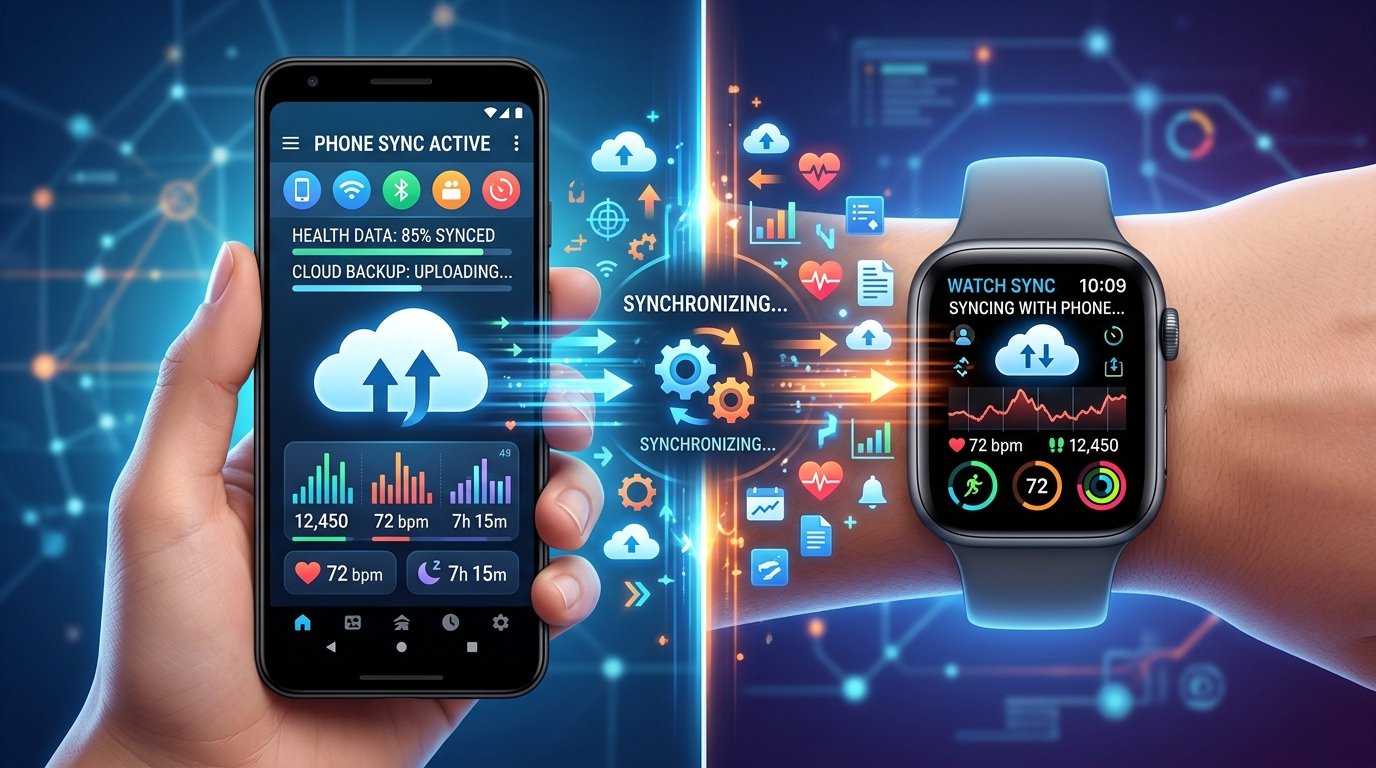
- A Compatible Smartphone: Most current systems require a smartphone to act as a "bridge." The sensor sends data to the phone via Bluetooth, and the phone then pushes that data to your watch.
- The Smartwatch: Whether you prefer a high-end fitness watch or a classic lifestyle wearable, it must be compatible with your CGM manufacturer's software or a supported third-party integration tool.
- The Software: You will need the official CGM provider app installed on your phone, along with the corresponding companion app for your watch.
It is also helpful to understand your current A1C (average blood sugar level over 3 months) before starting this journey. Having a baseline helps you see how much more effectively you can manage your levels once you have real-time data on your wrist.
Step-by-Step: Syncing Your Devices
While the specific buttons you press might vary depending on your device brand, the general workflow for syncing a CGM to a smartwatch follows a standard path. Follow these steps to get your data flowing.
Step 1: Set Up the Primary Connection
First, ensure your CGM is successfully paired with its official mobile application on your smartphone. Your phone is the primary hub. If the phone isn't receiving data, the watch won't either. Ensure Bluetooth is toggled "On" and that the app has all the necessary permissions to run in the background.
Step 2: Install the Watch Companion App
Open the app store associated with your smartwatch (on the watch itself or via the watch management app on your phone). Search for your CGM provider’s name and download their official watch application. Once installed, you may need to log in or "Authorize" the watch to view your data through the phone's security settings.
Step 3: Configure Your Watch Face (Complications)
In the world of smartwatches, a "complication" is any piece of information on a watch face that goes beyond the hours and minutes. To see your glucose at a glance without opening an app, you need to add the glucose complication to your preferred watch face.
- Long-press your current watch face.
- Select "Edit" or "Customize."
- Find an empty slot and scroll through the list of available data until you see your glucose provider’s icon.
- Select it to show your current reading and trend arrow.
Step 4: Enable Alerts and Notifications
One of the most life-saving features of this setup is the wrist-based vibration for highs and lows. Go into the notification settings of your watch app and ensure that "Critical Alerts" are allowed to bypass "Do Not Disturb" modes if necessary.
Troubleshooting Common Connection Issues
Technology is wonderful when it works, but Bluetooth can be finicky. If you see a "no data" message or a signal loss icon on your wrist, don't panic. Here are the most common fixes:
The "Bluetooth Handshake" Fail
Sometimes the phone and watch lose their connection. The easiest fix is to toggle Bluetooth off on your phone for 10 seconds and then turn it back on. This forces the devices to perform a new "handshake" and resume data sharing.
Background Refresh Issues
On many mobile operating systems, the phone will "kill" apps that use too much battery in the background. If your watch stops updating, check your phone’s battery settings. Ensure your glucose tracking apps are set to "Do Not Limit" or "Always Allow" for background data refresh.
Distance and Interference
Remember that Bluetooth has a limited range—usually about 20 to 30 feet. If you leave your phone in the kitchen and walk to the backyard, your watch will likely lose the signal. Additionally, large bodies of water (like a swimming pool) or thick walls can block the signal between your sensor and your phone.
Beyond the Number: Maximizing Your Health with GlucoAI
Seeing a number like "120 mg/dL" on your watch is a great start, but the real magic happens when you understand what that number means for your unique body. This is where a comprehensive management tool becomes essential. While your watch tells you what your sugar is, tools like GlucoAI help you understand why it is there.
By integrating your glucose data with a tracking app, you can start to see patterns. Did that 20-minute walk after lunch keep your spike lower than usual? Does your morning coffee cause a rise even without sugar? When you use your smartwatch for real-time monitoring and GlucoAI for long-term analysis, you transform raw data into a personalized health roadmap.
Using a glucose tracking app in tandem with your wearable allows you to log meals, exercise, and stress levels. Over time, you’ll notice that your A1C (average blood sugar level over 3 months) becomes much easier to manage because you aren't just reacting to numbers—you are predicting them.
Summary: Key Takeaways for Success
Syncing your CGM to your smartwatch is one of the most effective ways to take control of your metabolic health. By following this guide, you can move away from the "finger-prick" era and into a world of seamless, real-time awareness.
- Convenience is Key: Checking your wrist is faster, more discreet, and less stressful than using a phone or receiver.
- Watch Your Trends: Focus on the trend arrows (rising, falling, or stable) rather than just the single number.
- Check Compatibility: Ensure your phone, watch, and CGM sensor are all supported by the latest software updates.
- Troubleshoot Early: Most issues are related to Bluetooth range or background app permissions.
- Use the Right Tools: Combine your watch's real-time data with the analytical power of GlucoAI to uncover deep insights into your health.
Managing your glucose doesn't have to be a full-time distraction. With the right technology on your wrist and a supportive tool in your pocket, you can spend less time worrying about your numbers and more time enjoying your life. Ready to take your monitoring to the next level? Start by syncing your devices today and see how much easier it is to stay in range!
Note: Always consult your doctor or a qualified healthcare professional before making any changes to your medication, diet, or exercise routine.
GlucoAI — Smart Blood Sugar Monitor
Track, analyze, and optimize your glucose levels with AI-powered insights.